
Linux directories explained: what each folder is for (/, /home, /etc, /usr...)
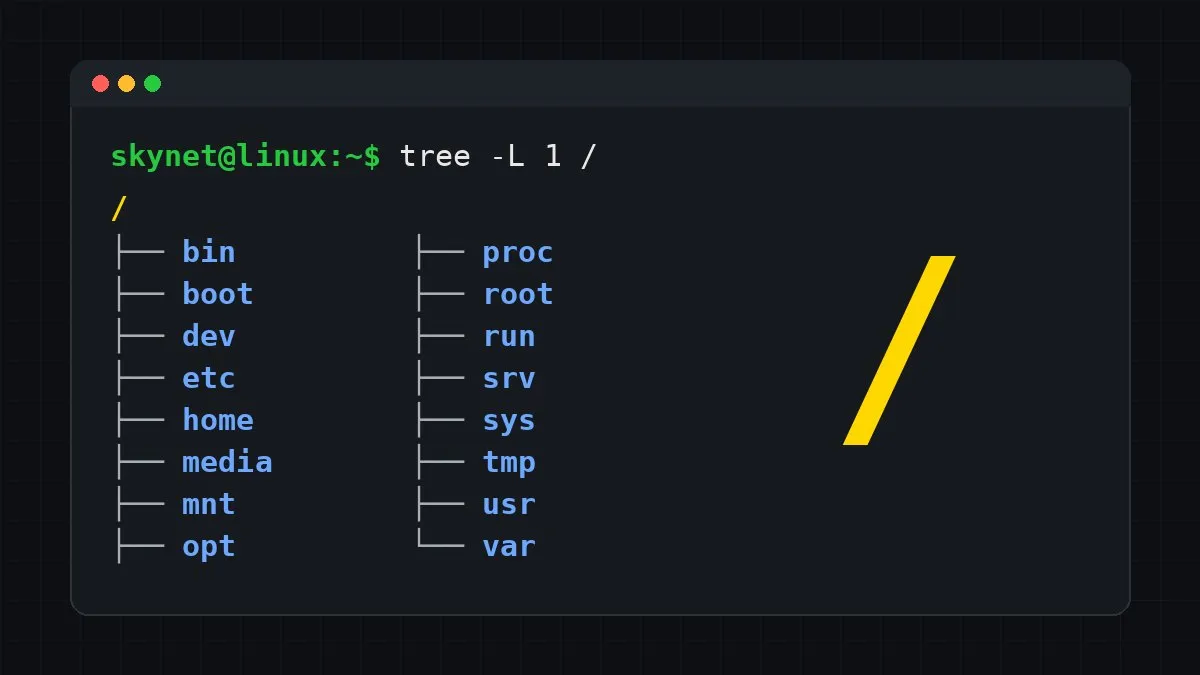
If you come from Windows and open a Linux terminal for the first time, the first question is usually: where is the C: drive? Linux has no C:, D: or E:. Everything hangs from a single tree of folders, and understanding that tree is what makes Linux stop looking hard. In this guide we explain, folder by folder, where everything lives and why.
This post is based on the video LINUX isn’t Hard Once You Understand This (File Directories), from the Cloud X Berry channel, and on the official specification that standardizes these folders, the Filesystem Hierarchy Standard (FHS), maintained by the Linux Foundation.
Everything starts at the root: /
Linux has a single starting point, the root, written as a slash: /. Every folder, from every disk, sits below it. When you plug in a USB stick or a second SSD, it does not get a letter: it is mounted on a folder in that tree and shows up inside it.
Three differences that confuse people coming from Windows:
- The folder separator is the forward slash (
/home/ana/photos), not the backslash (\). - Upper and lower case matter:
Photos,photosandPHOTOSare three different names. - Files and folders whose names start with a dot (like
.bashrc) are hidden. To see them, usels -a.
Absolute and relative paths
An absolute path starts at the root and works from anywhere: /etc/hostname. A relative path starts from the folder you are in right now: if you are in /home/ana, then photos means /home/ana/photos. A few shortcuts help a lot:
| Shortcut | Meaning |
|---|---|
/ | The root of the system. |
~ | Your home folder (for example, /home/ana). |
. | The current folder. |
.. | The folder above. |
The main folders, one by one
Here is the big picture. Right below it, the details of the ones that confuse people the most.
| Folder | What it holds |
|---|---|
/home | Each user’s personal folder (/home/ana, /home/john). |
/root | The administrator’s (the root user’s) personal folder. |
/bin | Everyday commands, like ls, cp and cat. |
/sbin | System administration tools. |
/etc | Configuration files for the system and programs. |
/usr | Most of the installed programs, libraries and documentation. |
/lib | Shared libraries used by programs, and kernel modules. |
/opt | Extra programs installed “on the side”, outside the package manager. |
/var | Data that changes all the time: logs, caches, queues, databases. |
/tmp | Temporary files. |
/run | Runtime information created since the last boot. |
/srv | Data for services the machine provides, such as websites. |
/media | Where USB sticks and removable disks show up. |
/mnt | A temporary mount point, used manually. |
/dev | Hardware devices, represented as files. |
/proc | A live window into processes and the kernel. |
/sys | Kernel information about hardware and drivers. |
/boot | Everything needed to start Linux: the kernel and the boot loader. |
/home and /root: not the same as the root
/home is where each person’s folder lives. Your documents, downloads and personal settings go there. Regular users can only change their own folder, which protects the rest of the system.
/root, on the other hand, is not the root of the system: it is just the administrator’s home folder, kept apart from the others for security. The root is /. Many people mix the two up because of the name.
/bin, /sbin and /lib: commands and libraries
/bin holds commands any user runs (ls, cp, mv, cat). /sbin holds administration tools, such as network and disk tools, which usually need sudo. /lib holds shared libraries, pieces of code many programs use at the same time, similar to DLLs on Windows.
A modern detail: on current distributions such as Ubuntu, Debian, Fedora and Arch, /bin, /sbin and /lib are just shortcuts to /usr/bin, /usr/sbin and /usr/lib. The old names still exist so that old programs do not break.
/usr: it is not “user”
From the name, it looks like the users’ folder, but it is not. Today, /usr holds most of the system’s software: programs (/usr/bin), libraries (/usr/lib), documentation and icons (/usr/share). Programs you compile and install by hand usually go to /usr/local.
You will hear that the name stands for “Unix System Resources”. In fact, in the first versions of Unix, /usr really was where the users’ folders lived. Over time it started holding programs, and the “System Resources” explanation came later. What matters is how it is used today: programs and shared resources, not personal files.
/etc: the settings
/etc is Linux’s control panel, only made of text files. It holds the machine’s name (/etc/hostname), the list of users (/etc/passwd, which despite the name does not store passwords), which disks are mounted at boot (/etc/fstab) and the settings of almost every installed service. Since everything is text, it is easy to back up, compare versions and automate changes.
/var and /tmp: data that changes
/var comes from “variable”: it holds what grows and changes while the system runs. The best-known example is /var/log, where the logs live, the logbook of everything that happens. When something goes wrong on a server, that is where the investigation starts. /var also holds caches, print queues and program data, such as databases.
/tmp is for temporary files. Any program can write there, and on most distributions this folder is cleaned on every reboot (some even keep it in RAM). Never save anything there that you want to keep.
/dev, /proc and /sys: the system seen as files
On Linux, almost everything is a file, including hardware. In /dev, the first disk may show up as /dev/sda or /dev/nvme0n1, and there is even a “black hole”, /dev/null, which throws away anything you send to it.
/proc and /sys are virtual folders: they take no space on the disk. The kernel builds them in memory and updates them in real time. Try cat /proc/cpuinfo to see the processor or cat /proc/meminfo to see the memory. Every running process also has a numbered folder inside /proc.
/boot, /media and /mnt
/boot holds the Linux kernel and the boot loader files (such as GRUB). Without them the machine does not start, so this is a folder to look at, not to touch.
/media is where the system automatically mounts USB sticks, external drives and memory cards. /mnt is a place for temporary mounts done by hand, for example a disk you will only access once.
/opt, /srv and /run
/opt receives “optional” programs that come as a self-contained package, outside the package manager. /srv holds data for the services the machine provides, such as a website’s files. /run holds information about what has been running since the last boot and is recreated on every restart.
An easy way to remember
Instead of memorizing dozens of names, group the folders by purpose:
- People:
/homeand/root. - Programs:
/bin,/sbin,/lib,/usrand/opt. - Configuration:
/etc. - Data that changes:
/var,/tmp,/runand/srv. - Hardware and the live system:
/dev,/procand/sys. - Starting the machine and connecting disks:
/boot,/mediaand/mnt.
With these six groups in mind, you can almost always guess where something is.
Explore it yourself
Open a terminal and walk around the tree. These commands only show information, so they are safe:
| Command | What it does |
|---|---|
pwd | Shows which folder you are in. |
ls / | Lists the folders at the root. |
cd /etc then ls | Goes into /etc and shows the settings. |
ls -la ~ | Lists everything in your home folder, including hidden files. |
tree -L 1 / | Draws the root tree (you may need to install tree). |
df -h | Shows the mounted disks and free space. |
du -sh folder | Shows how much space a folder takes. |
man hier | Opens the manual that describes the whole folder structure. |
Look around as much as you want, but do not delete or edit anything in /etc, /usr, /boot or /lib unless you know exactly what you are doing, especially with sudo.
And on the SKYNET servers?
Our servers run on Linux, and this layout is part of our day-to-day work: settings live in text files, logs are the first thing we check when something goes wrong, and each game server runs in a Docker container, which sees its own folder tree, with its own root /, separate from the others. If Linux is new to you, start with the post What is Linux and why it runs the world’s servers. To see how we put each piece together, read How the SKYNET servers work behind the scenes.
After the theory, come play: check the SKYNET ranking and join one of our servers.